Set up a Tesla door shortcut
Pair your key in Handlefree beside the parked car. Test the selected door, then add its Handlefree action in Apple Shortcuts. Run it once while you can observe the door.
Setup and support
Pair your key, test the door and make the control your own. Keep these steps nearby for your first session beside the car.
Answers to the questions Tesla owners ask most, with sources.
A practical starting point for nearby Tesla door control. Pair once, test your vehicle and choose the control that feels natural.
Pair your key in Handlefree beside the parked car. Test the selected door, then add its Handlefree action in Apple Shortcuts. Run it once while you can observe the door.
On a compatible iPhone, open Settings → Action Button, choose Shortcut, and select your Handlefree shortcut. Press and hold to run it. Keep the door area clear.
Keep the paired iPhone nearby: it holds the vehicle key and sends the Bluetooth request. Review Handlefree’s Watch access setting to choose whether requests are allowed while the iPhone is locked.
Park safely, keep the door area clear and check Bluetooth is enabled. Test the action inside Handlefree before trying its shortcut.
iPhone shortcuts require an unlocked phone. Holiday Mode blocks controls. Watch requests depend on the nearby paired iPhone and your Watch access setting.
An accepted command does not prove movement. If the position is unavailable, check the door yourself before issuing another command.
Tell support which action failed, your app version and the message shown. Leave out your VIN and vehicle key material.
A Tesla door command and a door opening are different events. Explore how Handlefree keeps them apart.
Handlefree is trying to reach your car. A request is not confirmation that the door moved.
Illustrative states using app captures. This website does not connect to a vehicle.
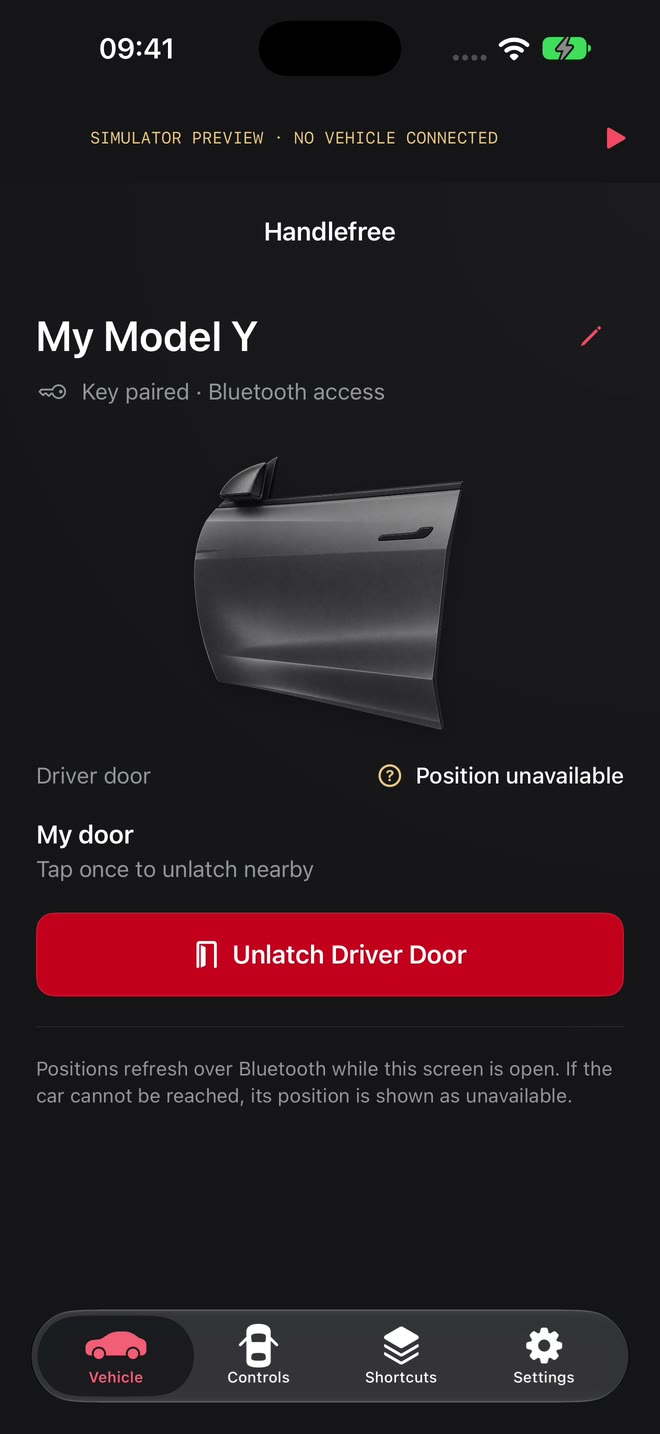
Clear answers before you make Handlefree part of your routine.
No. Pair a vehicle key using your key card, then communicate directly over Bluetooth. You do not sign in to a Tesla or Handlefree account.
Here, unlatch means releasing the door latch so you can open the door without operating the exterior handle. Unlocking alone does not release the latch. Handlefree does not turn a conventional door into a powered door.
Support depends on the vehicle, hardware and software, not the artwork selected in the app. The owner has tested doors, frunk and trunk on a Model Y. Check each action on your own parked vehicle; selecting Model 3, S or X artwork is not a compatibility guarantee.
Handlefree provides individual door controls on supported vehicles. Test the selected door beside your parked car before relying on its shortcut.
Yes, on iOS 18 or later. Add a fixed control for the driver door or any passenger door. It opens Handlefree, needs your unlocked iPhone and sends that one door once. Test the door in the app first.
Within a usable Bluetooth connection. Walls, your phone and the surroundings affect range. Signal strength is not an exact distance measurement; Handlefree does not promise a fixed 10-metre boundary.
The current Handlefree experience requires the paired iPhone nearby. The phone holds the key and communicates with the car.
iPhone shortcuts require an unlocked phone. Watch access has a separate setting that lets you decide whether Watch requests are allowed while the nearby iPhone is locked.
No. Handlefree is an independent OneKapisch product and is not affiliated with or endorsed by Tesla, Inc.